Connect your Instagram Business or Creator account to Viraly to schedule posts, reels, and stories. This guide walks you through the connection process and required permissions.
Before You Connect
Before connecting your Instagram account, ensure you meet these requirements:
| Requirement | Details |
|---|---|
| Professional Account | Your Instagram account must be a Business or Creator account. Personal accounts cannot be connected. |
| Instagram Credentials | Have your Instagram login credentials ready (username/email and password). |
| Analytics Minimum | To view analytics data, your account needs 100+ followers. Accounts with fewer followers can still connect and schedule posts. |
Need to convert your personal account? See our guide on how to convert your Instagram account to a Business or Creator account.
Connecting Your Instagram Account
Follow these steps to connect your Instagram account to Viraly:
- In Viraly, click + Connect Social Profile in the left sidebar
- Click Connect on the Instagram card
- In the info dialog, review the connection requirements and click Connect your Instagram account
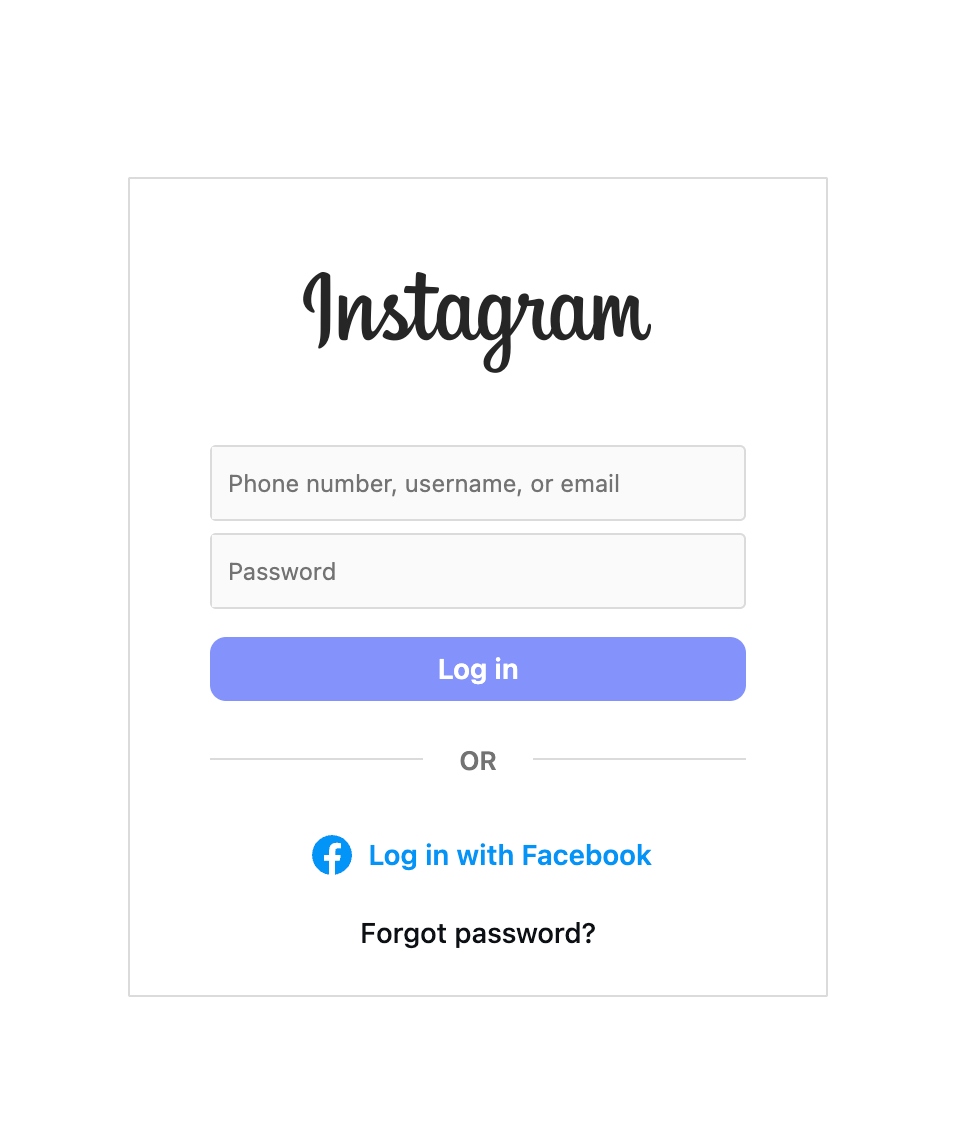
- Enter your Instagram login credentials and click Log in
- On the permissions screen, ensure all permissions remain enabled (they are pre-selected by default). Click Allow
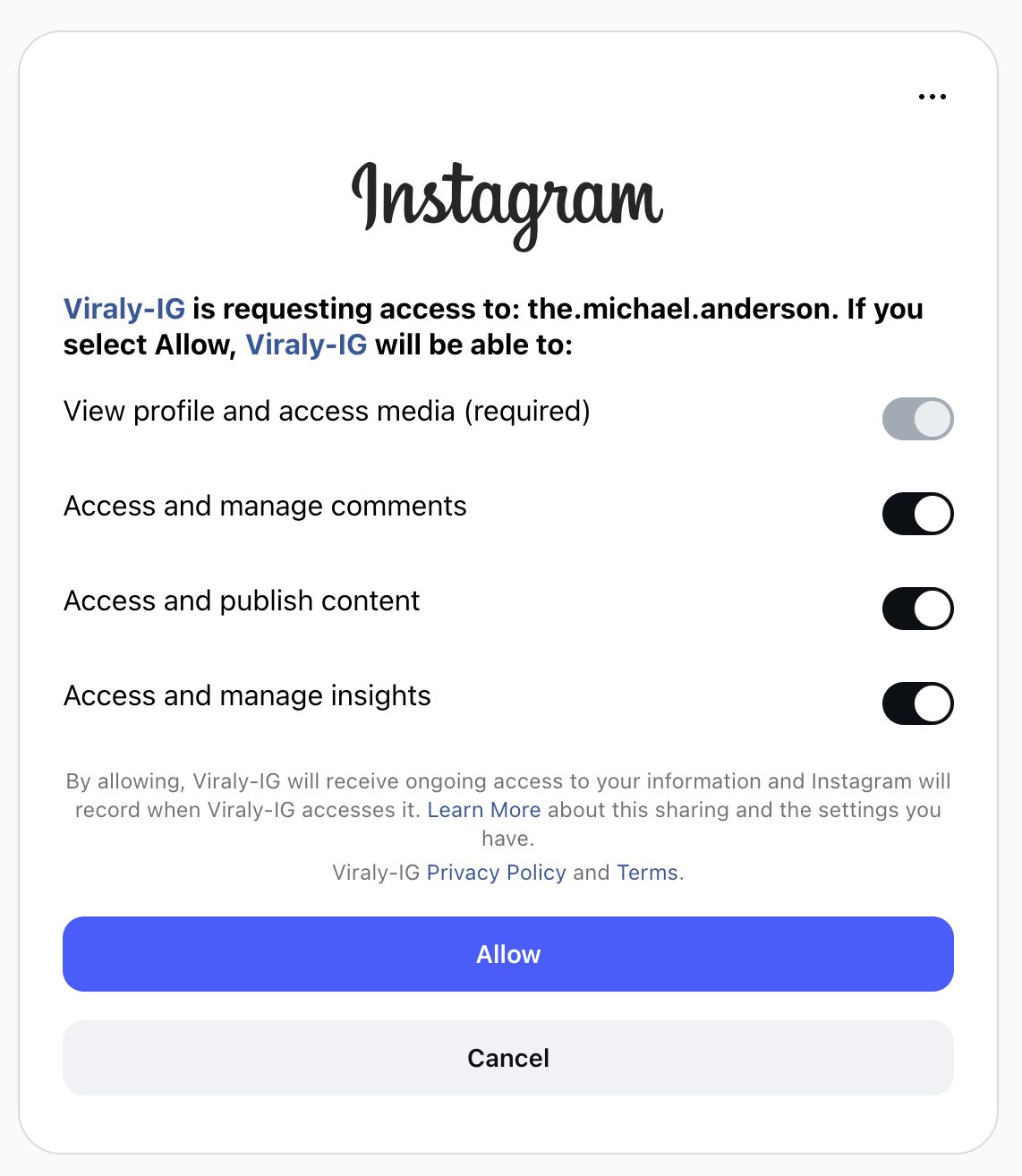
Important: Do not disable any permissions. Viraly requires all requested permissions to function properly. Disabling permissions will prevent features from working correctly.
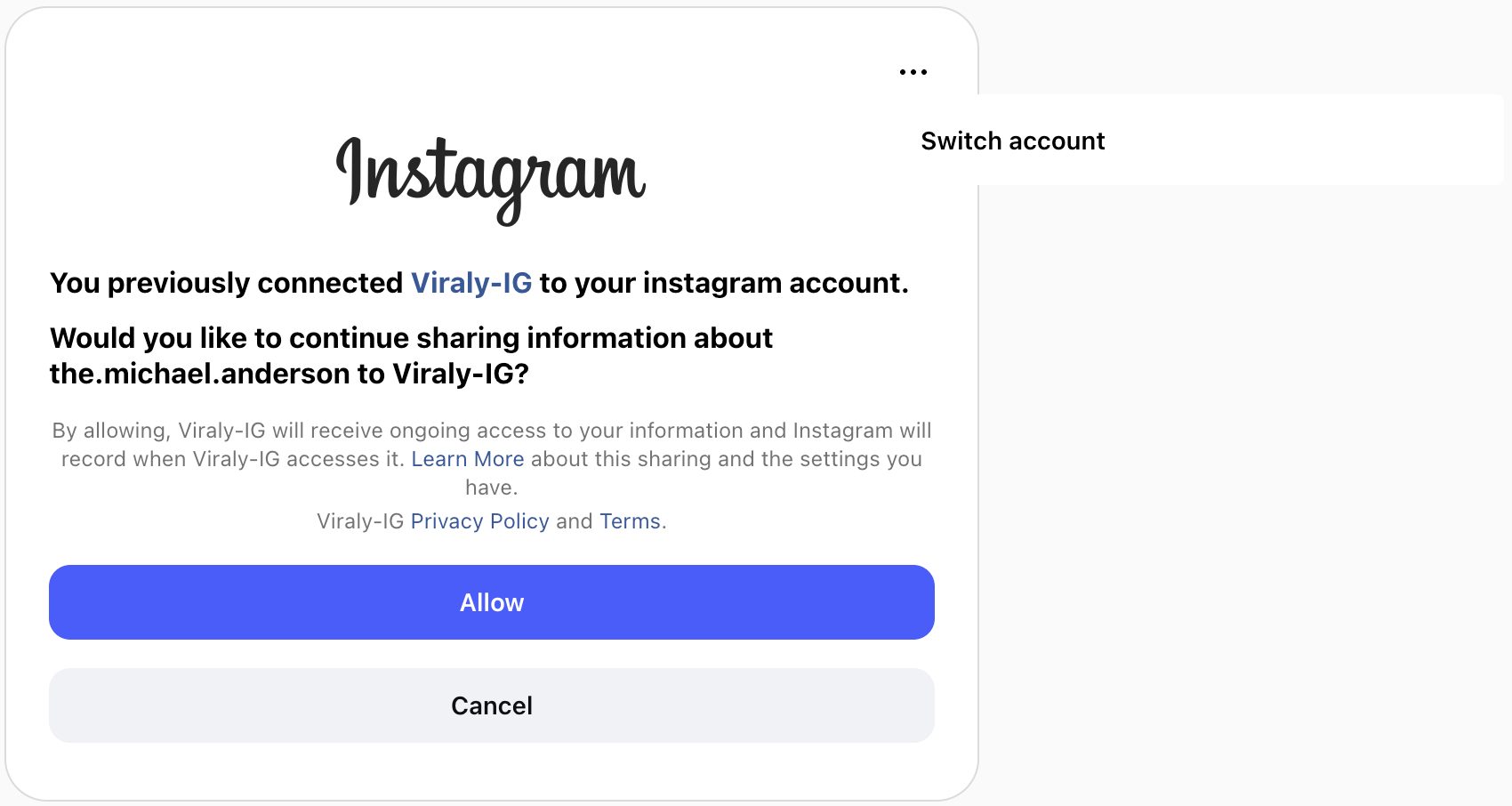
- If you’ve previously connected to Viraly, you may see a reconnection screen. Verify you’re logged into the correct account, or click Switch account to use a different one
- Back in Viraly, on the Which channels would you like to connect? screen, select your Instagram account and click Connect
- Your Instagram account is now connected and ready to use
Required Permissions
Viraly requests these Instagram permissions during the connection process:
| Permission | Purpose |
|---|---|
| View profile and access media | Read your account information, profile picture, and username |
| Access and publish content | Schedule and publish posts, reels, and stories on your behalf |
| Access and manage comments | Post first comments and manage comment interactions |
| Access and manage insights | Retrieve analytics data including reach, impressions, and engagement metrics |
All permissions are required for full functionality. If any permission is denied, some features may not work.
After Connecting
Once connected, you can use these Instagram features in Viraly:
Content Types
| Content Type | Description | Requirements |
|---|---|---|
| Feed Posts | Single images or carousels (2-10 items) | Images up to 8MB, aspect ratio 4:5 to 1.91:1 |
| Reels | Short-form video content | 3 seconds to 15 minutes, up to 300MB |
| Stories | 24-hour ephemeral content | Photos up to 8MB, videos 3-60 seconds up to 100MB |
Additional Features
- User Tagging — Tag other Instagram users in your photos
- Collaborators — Invite collaborators to co-author posts and reels
- Location Tagging — Add location tags to your posts
- First Comment — Automatically post a first comment with hashtags (posts and reels only)
- Custom Cover Photos — Upload custom thumbnail images for reels
- Analytics — View reach, impressions, engagement, and audience demographics (requires 100+ followers)
Managing Connected Profiles
To manage your connected Instagram account:
- View connection status — Go to Settings → Social Profiles to see all connected accounts
- Reconnect — If your connection expires or has issues, click the reconnect button to re-authorize
- Disconnect — Remove the account from Viraly (this does not affect your Instagram account itself)
Troubleshooting
Account shows as “Unavailable”
If your Instagram profile shows as “Unavailable” in the account picker, it means the profile is already connected to either this or another Viraly account. Each Instagram profile can only be connected to one Viraly account.
See our detailed guide: Why is my social profile listed as “Unavailable”?
Can’t see analytics data
Instagram’s API requires accounts to have at least 100 followers to access analytics data. If your account has fewer followers, you can still schedule and publish content, but analytics will not be available.
Permission errors after connecting
If you see permission errors when trying to use features:
- Go to your Instagram app → Settings → Security → Apps and Websites
- Find Viraly and remove it
- Reconnect your account in Viraly, ensuring all permissions are granted
Posts failing to publish
Common causes for failed posts:
- Media format issues — Ensure images and videos meet Instagram’s requirements
- Caption too long — Instagram captions are limited to 2,200 characters
- Too many hashtags — Maximum 30 hashtags per post
- Account restricted — Instagram may temporarily restrict posting if unusual activity is detected